D2R Streaming Setup Guide
Everything you need to stream Diablo 2 Resurrected — microphones, webcams, green screens, lighting, and streaming software. Budget to pro setups covering every tier from $25 to $1,000+.
🟢 Complete Budget Setup
🔴 Complete Pro Setup
🎙️ Microphones
Clear audio makes or breaks a stream. Even a budget USB mic beats built-in audio.
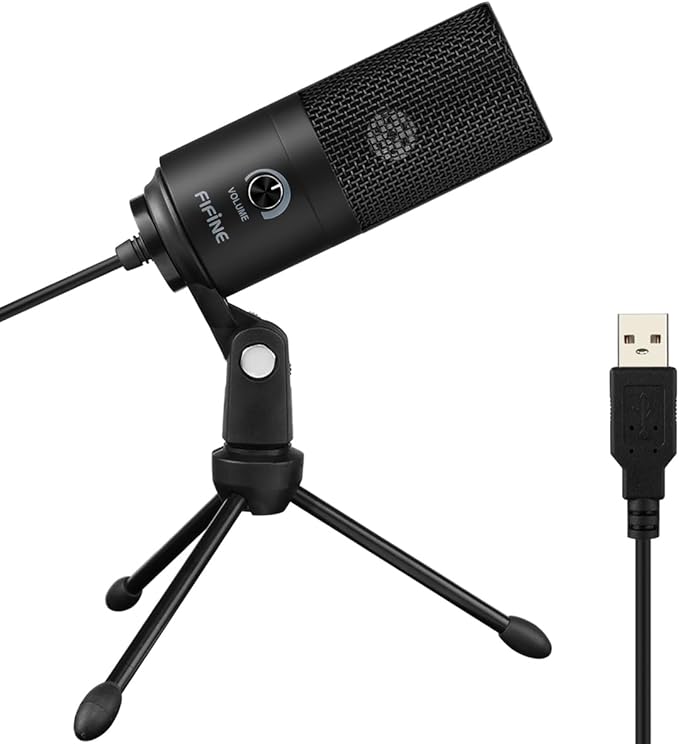
Budget — Under $30
Mid-Range — $80–$150
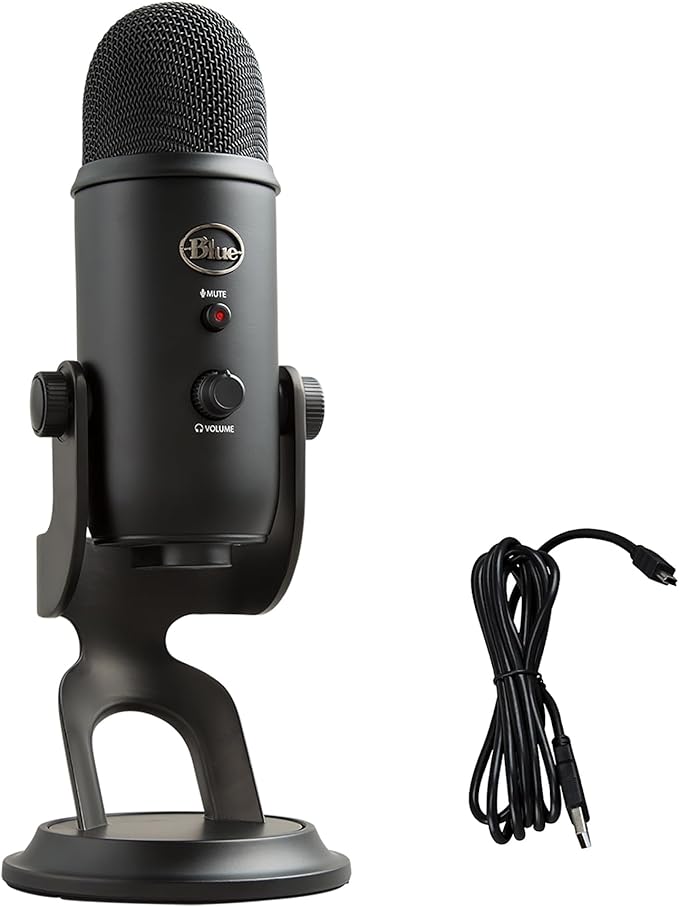 Top Seller
 Blue Yeti USB Microphone
~$100
80,000+ reviews (Amazon) · ⭐ 4.6
Check Price on Amazon ↗ RGB Pick
 HyperX QuadCast S RGB
~$120
Thousands of reviews (Amazon) · ⭐ 4.5
Check Price on Amazon ↗ Best for Streaming
 Elgato Wave:3
~$130
Thousands of reviews (Amazon) · ⭐ 4.6
Check Price on Amazon ↗Pro — $350+
 Broadcast Standard
 Shure SM7B
~$400
40,000+ reviews (Amazon) · ⭐ 4.8
Check Price on Amazon ↗ Required with SM7B
 Focusrite Scarlett Solo
~$119
50,000+ reviews (Amazon) · ⭐ 4.7
Check Price on Amazon ↗🦾 Mic Arms
Get the mic off your desk and in front of your face. Essential for any setup.
 Budget Pick
 InnoGear Boom Arm
~$20
Thousands of reviews (Amazon) · ⭐ 4.3
Check Price on Amazon ↗ Premium Pick
 RØDE PSA1+
~$110
Thousands of reviews (Amazon) · ⭐ 4.7
Check Price on Amazon ↗📷 Webcams
Face cam adds personality to your stream. Viewers stay longer when they can see you react to finding a Ber rune.
Budget

Mid-Range

High-End

📸 Pro Tip: Use a DSLR or Mirrorless as Your Webcam
A Sony A7 III or Canon EOS M50 turned into a webcam via the Elgato Cam Link 4K outputs cinematic, bokeh-blurred background quality that no webcam can match. The Cam Link 4K captures HDMI output at 1080p/60fps or 4K/30fps and appears in OBS as a standard capture device.
Elgato Cam Link 4K (~$119) ↗🟩 Green Screens
Remove your background and place yourself inside Sanctuary. Or just use a clean virtual background.
 Budget Pick
 EMART Collapsible Green Screen
~$40
Thousands of reviews (Amazon) · ⭐ 4.3
Check Price on Amazon ↗ Premium Pick
 Elgato Green Screen
~$160
Thousands of reviews (Amazon) · ⭐ 4.4
Check Price on Amazon ↗💡 Lighting
Good lighting is the single biggest upgrade for face cam quality. No amount of expensive camera compensates for bad light.
 Budget Pick
 Neewer Ring Light 10" USB
~$20
Thousands of reviews (Amazon) · ⭐ 4.4
Check Price on Amazon ↗ Premium Pick
 Elgato Key Light
~$180
Thousands of reviews (Amazon) · ⭐ 4.5
Check Price on Amazon ↗🖥️ Streaming Software
Your capture software is where everything comes together — game, face cam, mic, overlays. Pick the right one for your experience level.
OBS Studio
Free · Open SourceThe gold standard for D2R streaming. Game capture mode, scene collections, audio mixer with filters (noise suppression, compression), and an enormous plugin ecosystem. Steeper learning curve, but total control. Used by most full-time streamers.
obsproject.com ↗Streamlabs
Free (+ paid tiers)OBS fork with streaming overlays, alerts, and widgets built in. Sub notifications, donation goals, chat box — all pre-configured. Easier setup than vanilla OBS at the cost of higher CPU usage. Best choice if you want alerts without manual setup.
streamlabs.com ↗Twitch Studio
FreeTwitch's official streaming app. Walks you through setup step-by-step and auto-configures bitrate for your connection. Best for Twitch-only beginners who want zero configuration. Limited compared to OBS but you'll be live in under 10 minutes.
twitch.tv/studio ↗XSplit Broadcaster
Paid · ~$5/moPolished UI with slick scene transitions and built-in video editor for VODs. One-click stream switching between Twitch and YouTube. Less popular than OBS but the interface is genuinely cleaner. Good choice if you want to look professional fast.
xsplit.com ↗🎮 D2R-Specific Streaming Tips
Recommended OBS Settings for D2R (Twitch)
| Setting | Value | Why |
|---|---|---|
| Output Resolution | 1920×1080 | Twitch's max recommended. D2R looks sharp at 1080p. |
| FPS | 60 | D2R's combat animation reads much better at 60fps. |
| Encoder | x264 (software) | Best quality-per-bit. Use NVENC if CPU is bottlenecking. |
| x264 Preset | medium | Balance of quality and CPU load. Drop to veryfast if needed. |
| Bitrate (Twitch) | 6,000 kbps | Twitch's max for partners. Non-partners use 4,500–6,000. |
| Audio Bitrate | 160 kbps | 128 is the minimum; 160 is noticeably better for music. |
| Keyframe Interval | 2 seconds | Twitch requires 2s. YouTube prefers auto. |
🎯 Game Capture vs Window Capture
Always use Game Capture for D2R, not Window Capture. Game Capture hooks directly into D2R's DirectX pipeline — lower CPU overhead, no frame drops from alt-tabbing, and it captures HDR correctly. Set "Window" to Diablo II Resurrected.exe and "Capture Method" to Auto. Window Capture works as a fallback but performance is worse.
🖼️ Overlay Ideas for D2R
Level up your stream with D2R-specific overlays: a loot ticker showing dropped item names (via d2-loot-filter log parsing), a build display showing your current character stats and skills, and a Terror Zone timer showing when the current TZ rotates. Streamlabs widget templates exist for all three — search the overlay marketplace for "Diablo 2".
🔊 D2R Audio Chain in OBS
D2R's original soundtrack is iconic but can trigger copyright flags on Twitch VODs. In OBS Audio Settings, add D2R as a separate Application Audio Capture source. You can then mute game music selectively for VODs while keeping it live on stream. Keep sound effects audible — the crack of a dropped Unique is content.
📋 Recommended OBS Scenes
Build at minimum: Starting Soon (countdown + looping D2 music), Live — Playing D2R (game + face cam + chat box), BRB (static or animated), and Ending (raid call to action + follower goal). Scene transitions: use a quick Fade to black — 300ms is perfect for D2R's dark aesthetic.
📋 Complete Streaming Setup Guide
Zero to live in under an hour. No experience needed.
Step 1: Create Your Streaming Account
Pick a platform. Twitch is where most D2R viewers are. YouTube is better for VODs and discoverability.
- Twitch: Go to twitch.tv/signup → create account → verify email
- YouTube: Go to studio.youtube.com → click "Go Live" → you need 50 subscribers to go live on mobile, but desktop is immediate
- Kick: Go to kick.com → sign up → Kick pays better per viewer but has less audience
💡 Tip: Start on Twitch. You can always multistream later.
Step 2: Download OBS Studio (Free)
OBS is free, open source, and what 90% of streamers use. It works on Windows, Mac, and Linux.
- Download from obsproject.com/download
- Install it — just click "Next" through everything, default settings are fine
- When it opens for the first time, it'll ask if you want to run the auto-configuration wizard — say YES. It tests your internet speed and sets everything up for you
- Pick "I want to stream" when asked
💡 Alternative: Streamlabs is OBS with built-in alerts and overlays. Easier to set up, slightly heavier on resources.
Step 3: Connect OBS to Twitch
This tells OBS where to send your video.
- In OBS, go to
Settings→Stream - Service: select Twitch
- Click "Connect Account" — it'll open your browser to log in
- Authorize OBS → done. No stream key needed.
💡 For YouTube: same steps but select "YouTube - RTMPS" and connect your Google account.
Step 4: Add D2R as a Game Capture Source
This is what puts D2R on your stream.
- Launch D2R first (it needs to be running)
- In OBS, under "Sources" (bottom panel), click the + button
- Select "Game Capture"
- Name it "D2R" or whatever you want
- Mode: "Capture specific window"
- Window: select "Diablo II Resurrected" from the dropdown
- Click OK — you should see D2R in the preview
⚠️ If D2R doesn't appear in the dropdown, try "Capture any fullscreen application" instead. Make sure D2R is running in fullscreen, not windowed.
Step 5: Set Up Your Mic
Plug in your mic. USB mics (like the FIFINE or Blue Yeti above) just plug in and work — no drivers needed.
- Plug in your USB mic
- In OBS, go to
Settings→Audio - Under "Mic/Auxiliary Audio", select your mic from the dropdown
- Click Apply
- Back in the main OBS window, talk into your mic — you should see the green audio bar moving under "Mic/Aux"
💡 Add a Noise Suppression filter: right-click your mic in the Audio Mixer → Filters → + → Noise Suppression → select "RNNoise". This removes keyboard clicks and background noise for free.
Step 6: Add Your Webcam (Optional)
Face cams aren't required but they massively increase engagement. Viewers want to see your reaction when a Ber drops.
- Plug in your webcam (USB — it just works)
- In OBS Sources, click + → "Video Capture Device"
- Select your webcam from the dropdown → OK
- Resize the webcam preview — drag the corners to make it smaller
- Position it in a corner (bottom-left or bottom-right). Don't cover the D2R minimap or inventory.
💡 Right-click the webcam source → Filters → + → "Chroma Key" if you have a green screen. OBS removes the background automatically.
Step 7: Configure Your Stream Settings
If the auto-wizard already ran, you're probably fine. But here are the settings that work best for D2R:
Settings→Output→ Output Mode: Advanced- Encoder: x264 (or NVENC if you have an NVIDIA GPU — NVENC is easier on your CPU)
- Rate Control: CBR
- Bitrate: 4500–6000 kbps (higher = better quality, but needs faster upload speed)
Settings→Video→ Output Resolution: 1920×1080, FPS: 60
⚠️ Don't know your upload speed? Go to speedtest.net. You need at least 8 Mbps upload for a clean 1080p60 stream. If you have less, drop to 720p60 at 3000 kbps.
Step 8: Set Up Your Twitch Stream Info
Before you go live, set your stream title and category on Twitch.
- Go to your Twitch Dashboard (dashboard.twitch.tv)
- Click "Stream Manager" on the left
- Click "Edit Stream Info"
- Title: something like "D2R Ladder Grind — HR Hunting 🔥"
- Category: search for "Diablo II: Resurrected"
- Tags: add English, Grinding, ARPG
- Click Done
Step 9: Go Live! 🎬
You're ready.
- In OBS, click "Start Streaming" (bottom right)
- OBS will show a green square at the bottom — that means you're live
- Open your Twitch channel in a browser to verify it's working (you'll see yourself with a ~5 second delay)
- Play D2R and talk. That's it. You're streaming.
💡 Your first stream will feel weird. Nobody's watching and you're talking to yourself. That's normal. Keep going. The D2R community is chill — even 2-3 viewers chat and engage.
Step 10: Level Up Your Stream
Once you've streamed a few times and feel comfortable, add these:
- Alerts: StreamElements (free) — shows on-screen notifications when someone follows or subscribes
- Chat overlay: Add your Twitch chat on screen so viewers see their messages. StreamElements has a widget for this.
- Scenes: Create a "Starting Soon" scene, a "BRB" scene, and an "Ending" scene. Switch between them in OBS's scene list.
- Channel points: On your Twitch dashboard → Community → Channel Points. Let viewers spend points to make you do Baal runs, reroll characters, etc.
- VODs: On Twitch, go to Settings → Stream → toggle "Store Past Broadcasts". This saves your streams so people can watch later.
- Discord: Create a Discord server for your community. Link it on your Twitch panel. The D2R community loves Discord for trading and party finding.
🔗 Useful Links
- OBS Studio Download — free streaming software
- Twitch Sign Up
- Twitch Creator Dashboard
- StreamElements — free alerts, overlays, and chat bot
- Speedtest.net — check your upload speed
- Twitch Inspector — debug stream quality issues
- Streamlabs — alternative to OBS with built-in themes
- Restream — multistream to Twitch + YouTube + Kick simultaneously
🔗 Related Gear Guides
Prices & Availability: All prices shown are approximate and sourced from Amazon at the time of writing. Prices, availability, product details, and review counts change frequently. Always verify current pricing on Amazon before purchasing. Last updated: March 2026.
Product Ratings: Star ratings and review counts shown are sourced from Amazon product listings at the time of publication. These figures are not independently verified by DiabloBytes and will change over time. Review counts labeled "(Amazon)" indicate the source.
Editorial Independence: DiabloBytes selects products based on community popularity, review volume, and D2R streamer use cases. We do not accept payment from manufacturers for product placement. Our recommendations are based on publicly available data and our own editorial judgment.
Software Recommendations: Streaming software recommendations (OBS, Streamlabs, Twitch Studio, XSplit) are not affiliate links. No compensation is received from these companies.
⚔️ Get More Loot with Better Gear
Upgrade your D2R setup. Buying through these links supports DiabloBytes at no extra cost to you.

MSI RTX 4070 Super Gaming X Slim
4K-ready GPU. D2R at max settings with headroom for everything else.
Razer BlackWidow V4 Pro
Command dial + macro keys. Premium mechanical for serious ARPG sessions.
SteelSeries QcK XXL Desk Mat
Massive 36"×16" desk mat. Smooth tracking for those clutch Enigma teleports.
As an Amazon Associate, DiabloBytes earns from qualifying purchases.